How To Connect To Eduroam On Raspberry Pi OS
Connecting to Eduroam on Raspberry Pi OS
Section titled “Connecting to Eduroam on Raspberry Pi OS”-
In the top right, click the network icon and select
Turn on Wireless LAN(if it is not on already)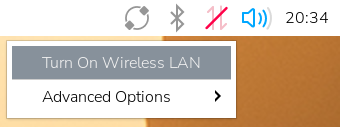
-
Click the network icon again, and select
eduroamfrom the list of available networks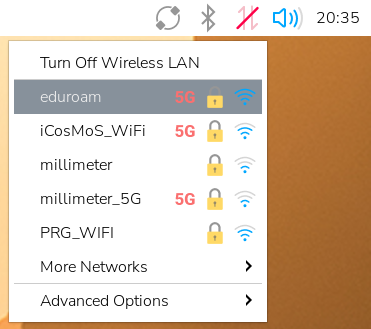
-
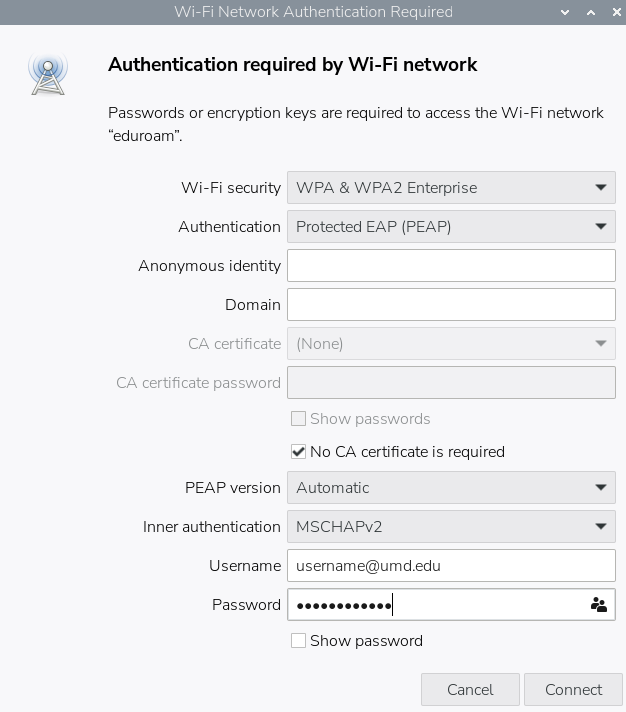
Enter authentication settings and Eduroam credentials, and Connect
- Authentication:
Protected EAP (PEAP) - Click the checkbox for
No CA certificate is required - Username: your UMD email (e.g.
[email protected]) - Password: your UMD password
- Click
Connect
- Authentication:
-
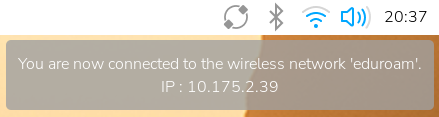
Confirm that you are now connected to Eduroam
What to do next
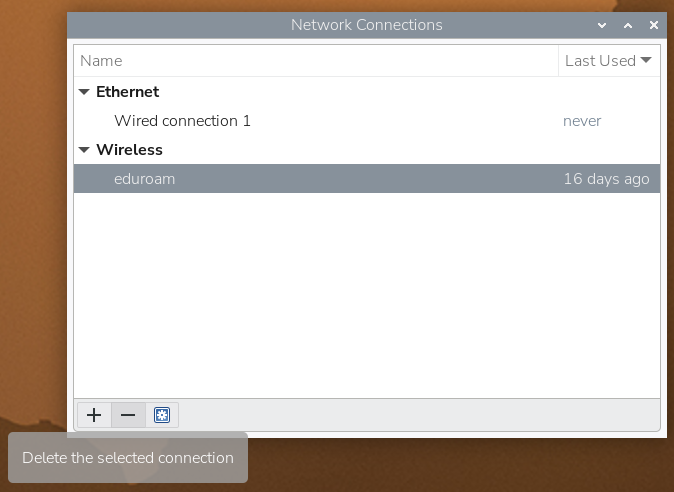
Section titled “What to do next”It is important to note that when editing the Eduroam connection settings, you can after the fact click “Show Password” to view the saved password. This is not ideal when using shared or public devices, as it may expose your credentials to others. For the purposes of the club, we wipe & reinstall Raspberry Pi OS on each of our SD cards after each club meeting. However, you can also once you are done, delete the saved connection as a precaution.
Deleting the Eduroam Network Connection
Section titled “Deleting the Eduroam Network Connection”-
At the top right, click the network icon and select
Advanced Options > Edit Connections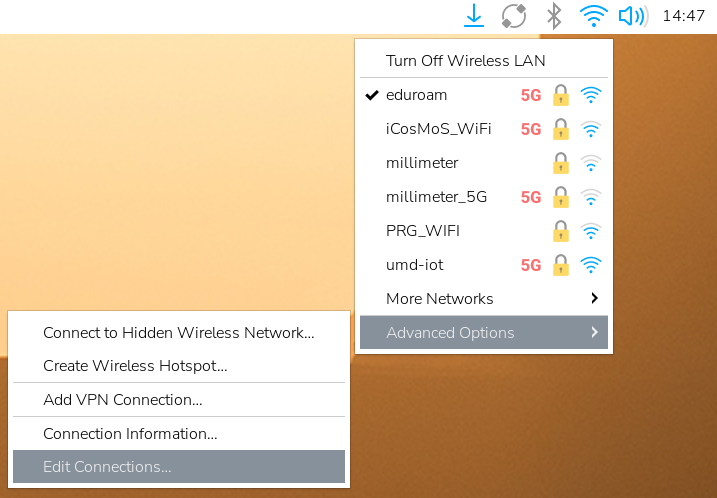
-
Click on
eduroam, then click the minus button at the bottom left of the window to delete the connection