Skip to content

SNMP with Grafana

SNMP with Grafana

Guide on setting up SNMP monitoring with Grafana.

What you will need

This project assumes that you have already followed our Raspberry Pi installation project, and have the resulting configured Raspberry Pi. If you are installing on different hardware or a different OS, these steps may not all be the same for you.

System Preparation

Before continuing with the project, make sure your system is up to date.

Updating System
sudo apt update
sudo apt upgrade -y

Install a text editor of your choice. Here we use vim as an example.

Installing Vim
sudo apt install vim

Concepts

What is Monitoring / Network Monitoring?1/2

Network monitoring is the process of continuously observing network devices, services, and traffic to understand their availability, health, and performance.

What is Monitoring / Network Monitoring?2/2

A network administrator might want to know:

  • Is a device online?
  • Are its network interfaces up?
  • How much network traffic is it handling?
  • Is it experiencing errors or dropped packets?
  • How much CPU, memory, or storage is it using?
  • Has any of this changed over time?

Why monitor?1/2

Without monitoring, administrators may not know something is wrong until a user reports it.

Monitoring allows administrators to:

  • Detect problems earlier
  • Identify unusual behavior
  • Compare current performance against normal performance
  • Track changes over time
  • Make decisions about capacity and upgrades

Why monitor?2/2

Raspberry Pi Networking Basics

ip command1/4

The ip command is a powerful tool for managing network interfaces, IP addresses, and routing on Linux systems. You can use it for things such as:

  • Viewing your IP address
  • Viewing network interface statuses
  • Viewing network statistics / traffic
  • etc.
ip Command Syntax
ip [ OPTIONS ] OBJECT { COMMAND | help }

ip command2/4

Some objects you might commonly use with the ip command include:

  • addr - for managing IP addresses
  • link - for managing network interfaces
  • route - for managing routing tables

Some options you might commonly use with the ip command include:

  • -s - show statistics
  • -4 - use IPv4 only
  • -6 - use IPv6 only

ip command3/4

Examples:

ip addr show

ip command4/4

ip -s link

Looking at our network statistics1/3

The Raspberry Pi already knows a lot about its network interfaces and traffic by default. From the output of ip -s link:

Example Output: ip -s link
itclub@monk:~ $ ip -s link
1: lo: <LOOPBACK,UP,LOWER_UP> mtu 65536 qdisc noqueue state UNKNOWN mode DEFAULT group default qlen 1000
link/loopback 00:00:00:00:00:00 brd 00:00:00:00:00:00
RX: bytes packets errors dropped missed mcast
62544 772 0 0 0 0
TX: bytes packets errors dropped carrier collsns
62544 772 0 0 0 0
2: eth0: <BROADCAST,MULTICAST,UP,LOWER_UP> mtu 1500 qdisc mq state UP mode DEFAULT group default qlen 1000
link/ether d8:3a:dd:f8:f2:cf brd ff:ff:ff:ff:ff:ff
RX: bytes packets errors dropped missed mcast
411962531 307160 0 7 0 4325
TX: bytes packets errors dropped carrier collsns
6213265 66544 0 0 0 0
3: wlan0: <BROADCAST,MULTICAST> mtu 1500 qdisc noop state DOWN mode DEFAULT group default qlen 1000
link/ether d8:3a:dd:f8:f2:d1 brd ff:ff:ff:ff:ff:ff
RX: bytes packets errors dropped missed mcast
0 0 0 0 0 0
TX: bytes packets errors dropped carrier collsns
0 0 0 0 0 0
itclub@monk:~ $

Looking at our network statistics2/3

We can see the statistics for each network interface, including:

  • Interface state
  • Bytes received (RX)
  • Bytes transmitted (TX)
  • Packets received/transmitted
  • Errors
  • Dropped packets

Looking at our network statistics3/3

And that’s all well and good when we are manually inspecting network statistics on the Raspberry Pi. What if we had multiple Pis, or a whole fleet of devices to monitor? Manually logging into every device and checking each one would be impractical. And how could we collect this information over time in order to analyze trends and detect anomalies? This is where SNMP comes in handy, allowing us to programmatically query and monitor network statistics across devices.

SNMP

What is SNMP?1/2

SNMP stands for Simple Network Management Protocol.

It is an application-layer protocol used to monitor and manage network-connected devices, and can be supported by many different types of equipment.

What is SNMP?2/2

SNMP Agent

Software running on the device being monitored.

The agent:

  • Collects information about the device
  • Makes that information available through SNMP
  • Responds to requests from an SNMP manager

On our Raspberry Pi, we’ll use snmpd.

SNMP Manager1/2

The SNMP manager is the system that queries and collects information from SNMP agents.

It is responsible for:

  • Sending requests to SNMP agents
  • Receiving responses from SNMP agents
  • Processing the returned management information

SNMP Manager2/2

SNMP managers are commonly part of network management and monitoring systems. In this project, we will eventually use Telegraf to automatically poll our SNMP agent and collect its metrics.

For this guide, we will start by using SNMP tools such as snmpwalk and snmpget to manually query our Raspberry Pi, and then move to using Telegraf as our SNMP manager in combination with InfluxDB and Grafana to collect and visualize data from our Raspberry Pi devices.

Package Installation

We will need the following packages to get started with SNMP:

  • snmp: Command-line tools (like snmpwalk, snmpget) used to query SNMP agents
  • snmpd: The SNMP agent daemon that runs on a background service to report stats from your machine
  • snmp-mibs-downloader: Installs standard, text-readable MIB files so you can query system metrics by name instead of numeric OID. This is particularly useful when using tools like snmpwalk and snmpget to make the output more human-readable.
Installing SNMP Packages
sudo apt install snmp snmpd snmp-mibs-downloader

Verifying SNMP Agent Installation1/2

  1. Check that the agent is running:

    snmpd Service Status
    sudo systemctl status snmpd

Verifying SNMP Agent Installation2/2

  1. Check where it’s listening:

    snmpd Listening Ports
    sudo ss -ulpn | grep snmpd

    You should see 127.0.0.1:161 and [::1]:161 indicating that the SNMP daemon is listening on both IPv4 and IPv6 loopback addresses on port 161. This means that SNMP will only be accessible locally on the machine, which is fine for the purposes of this guide.

Object Identifiers (OIDs)1/2

SNMP needs a standardized way to identify every piece of information that can be requested.

It uses an Object Identifier, or OID.

An OID is a globally unique identifier that represents a specific piece of information in the SNMP-managed device.

OIDs are organized in a hierarchical tree structure, and each node in the tree has a numeric identifier. By querying an OID, you can retrieve the corresponding value from the device. For example, .1.3.6.1.2.1.1.5.0 is the OID for the system name of the device.

Object Identifiers (OIDs)2/2

1 - iso
└── .3 - org
└── .6 - dod
└── .1 - internet
└── .2 - mgmt
└── .1 - mib-2
├── .1 - system
│ ├── .1 - sysDescr
│ ├── .3 - sysUpTime
│ └── .5 - sysName
└── .2 - interfaces

Thats a lot of numbers, so here is where MIBs come in.

Management Information Bases (MIBs)

A Management Information Base (MIB) defines and describes objects that can be managed through SNMP. MIBs give meaningful names to OIDs.

Instead of remembering:

.1.3.6.1.2.1.1.5.0

we can use:

SNMPv2-MIB::sysName.0

snmpd

Default Configuration1/3

The following is an example of the default configuration for snmpd (minus all the comments).

/etc/snmp/snmpd.conf
itclub@monk:~ $ sudo grep -vE '^\s*(#|$)' /etc/snmp/snmpd.conf
sysLocation Sitting on the Dock of the Bay
sysContact Me <[email protected]>
sysServices 72
master agentx
agentaddress 127.0.0.1,[::1]
view systemonly included .1.3.6.1.2.1.1
view systemonly included .1.3.6.1.2.1.25.1
rocommunity public default -V systemonly
rocommunity6 public default -V systemonly
rouser authPrivUser authpriv -V systemonly
includeDir /etc/snmp/snmpd.conf.d
itclub@monk:~ $

Default Configuration2/3

Some configuration options in the default snmpd.conf include:

  • agentaddress 127.0.0.1,[::1] - specifies the IP addresses and ports on which the SNMP agent listens for incoming requests. As mentioned earlier, for the purposes of this guide, local is sufficient.
  • view systemonly included <OID> - defines a view named systemonly that includes the specified OID subtree, allowing access to only the objects within that subtree.

Default Configuration3/3

  • rocommunity public default -V systemonly - defines a read-only community string public that has access to the systemonly view. This allows SNMP clients to query system-related information. A community string acts somewhat like a shared access string in SNMPv1/v2c, however it is sent without encryption. For SNMPv3, instead of a community string, you need to provide (with the rouser option) a username, password, and optionally an encryption key for secure communication, which is why we aren’t using SNMPv3 in this guide.

Editing the Configuration

  1. Open the snmpd.conf file for editing using your preferred text editor (e.g., vim).

    Editing /etc/snmp/snmpd.conf
    sudo vim /etc/snmp/snmpd.conf
  2. Locate the view systemonly ... configuration and modify it to include the additional OID subtrees for system and host-related information by adding/editing the following lines:

    /etc/snmp/snmpd.conf
    view systemonly included .1.3.6.1.2.1.1
    view systemonly included .1.3.6.1.2.1.2
    view systemonly included .1.3.6.1.2.1.25
    view systemonly included .1.3.6.1.2.1.31
  3. Restart the snmpd service to apply the changes.

    Restarting snmpd
    sudo systemctl restart snmpd
  4. Check the status of the snmpd service to ensure it is running correctly.

    Checking snmpd status
    sudo systemctl status snmpd

Querying with SNMP tools

  • snmpget: retrieve individual management values using SNMP GET requests
  • snmpwalk: retrieve a subtree of management values using SNMP GETNEXT requests

snmpget1/3

snmpget is used to retrieve individual management values using SNMP GET requests. It allows you to query specific OIDs or MIB names to get their current values.

snmpget Example
snmpget -v2c -c public localhost SNMPv2-MIB::sysName.0

snmpget2/3

Options used in the example:

  • -v2c specifies the SNMP version to use (in this case, SNMPv2c)
  • -c public specifies the community string (in this case, public)
  • localhost specifies the target host (in this case, the local machine)
  • SNMPv2-MIB::sysName.0 specifies the OID (or MIB name) to query (in this case, the system name)

snmpget3/3

Your output should show the system name of the local machine, which in this case is monk:

snmpget Output Example
itclub@monk:~ $ snmpget -v2c -c public localhost SNMPv2-MIB::sysName.0
SNMPv2-MIB::sysName.0 = STRING: monk

snmpwalk1/2

snmpwalk is used to retrieve a subtree of management values using SNMP GETNEXT requests. It allows you to query a range of OIDs or MIB names to get all the current values within that subtree.

snmpwalk Example
snmpwalk -v2c -c public localhost IF-MIB::ifDescr

See snmpget for a description of the options used.

snmpwalk2/2

Your output should show the descriptions of all network interfaces on the local machine:

snmpwalk Output Example
itclub@monk:~ $ snmpwalk -v2c -c public localhost IF-MIB::ifDescr
IF-MIB::ifDescr.1 = STRING: lo
IF-MIB::ifDescr.2 = STRING: eth0
IF-MIB::ifDescr.3 = STRING: wlan0
itclub@monk:~ $

Tables and Indexes1/3

SNMP commonly represents information about multiple similar objects using tables. Each row in a table is uniquely identified by an index, which allows you to correlate and retrieve specific information about that row across different columns in the SNMP table.

So for example, when looking at the IF-MIB::ifDescr table, each network interface is associated with a unique index.

Tables and Indexes2/3

Indices of Network Interfaces
itclub@monk:~ $ snmpwalk -v2c -c public localhost IF-MIB::ifDescr
IF-MIB::ifDescr.1 = STRING: lo
IF-MIB::ifDescr.2 = STRING: eth0
IF-MIB::ifDescr.3 = STRING: wlan0

Tables and Indexes3/3

Network Interface Statuses
itclub@monk:~ $ snmpwalk -v2c -c public localhost IF-MIB::ifOperStatus
IF-MIB::ifOperStatus.1 = INTEGER: up(1)
IF-MIB::ifOperStatus.2 = INTEGER: up(1)
IF-MIB::ifOperStatus.3 = INTEGER: down(2)

From these two commands, we can see that the network interface eth0 is associated with the index 2, and thus has a status of up(1).

Queries of Interest

Here are some SNMP queries of interest to monitor system and network information:

System Information

System Name
snmpget -v2c -c public localhost SNMPv2-MIB::sysName.0

Network Information

Network Interface Names
snmpwalk -v2c -c public localhost IF-MIB::ifDescr
Network Interface Statuses
snmpwalk -v2c -c public localhost IF-MIB::ifOperStatus
Network Interface Speed (in millions of bits per second)
snmpwalk -v2c -c public localhost IF-MIB::ifHighSpeed

Network Information (Traffic)1/3

Network Interface Inbound Traffic (Bytes Received)
snmpwalk -v2c -c public localhost IF-MIB::ifHCInOctets
Network Interface Outbound Traffic (Bytes Transmitted)
snmpwalk -v2c -c public localhost IF-MIB::ifHCOutOctets
Network Interface Inbound Errors (Packets with Errors)
snmpwalk -v2c -c public localhost IF-MIB::ifInErrors
Network Interface Outbound Errors (Packets with Errors)
snmpwalk -v2c -c public localhost IF-MIB::ifOutErrors
Network Interface Inbound Dropped/Discarded Packets
snmpwalk -v2c -c public localhost IF-MIB::ifInDiscards
Network Interface Outbound Dropped/Discarded Packets
snmpwalk -v2c -c public localhost IF-MIB::ifOutDiscards

Network Information (Traffic)2/3

Network Information (Traffic)3/3

Device Resources

CPU Usage
CPU
snmpwalk -v2c -c public localhost HOST-RESOURCES-MIB::hrProcessorLoad
Memory and Storage
Memory and Storage Descriptions
snmpwalk -v2c -c public localhost HOST-RESOURCES-MIB::hrStorageDescr
Memory and Storage Sizes (Total Units)
snmpwalk -v2c -c public localhost HOST-RESOURCES-MIB::hrStorageSize
Memory and Storage Sizes (Used Units)
snmpwalk -v2c -c public localhost HOST-RESOURCES-MIB::hrStorageUsed
Memory and Storage Allocation (Bytes per Unit)
snmpwalk -v2c -c public localhost HOST-RESOURCES-MIB::hrStorageAllocationUnits

The Problem With What We’re Doing1/2

Manually retrieving system information using SNMP commands like snmpget and snmpwalk is not scalable. For a single device, and for looking at the system’s status at a specific point in time, it might be feasible. However, this approach quickly becomes cumbersome as the number of devices increases or when continuous monitoring is required.

The Problem With What We’re Doing2/2

We need something to:

  • Query SNMP automatically
  • Query it repeatedly at regular intervals over time
  • Store the collected data
  • Calculate changes over time
  • Visualize the results

This is where automated monitoring solutions like Telegraf, InfluxDB, and Grafana come into play, allowing for continuous data collection, storage, and visualization across multiple devices.

Install and Configure Docker1/2

To run Telegraf, InfluxDB, and Grafana in a consistent and isolated environment, we can use Docker. Docker allows us to containerize these applications, making it easier to deploy and manage them without worrying about dependencies and system configurations.

See our portainer guide for a more comprehensive explanation of Docker and container management.

Install and Configure Docker2/2

  1. Install Docker

  2. Verify that Docker is installed correctly:

    Terminal window
    docker --version
    Terminal window
    docker compose version
  3. Verify that the docker group exists:

    Terminal window
    cat /etc/group | grep docker

    If it does not exist, you may need to create it:

    Terminal window
    sudo groupadd docker
  4. Add your user to the docker group:

    Terminal window
    sudo usermod -aG docker $USER
  5. Log out and log back in for the group changes to take effect, or run newgrp docker to apply the changes immediately. You can use the command groups to verify your group membership.

  6. Verify that you can run Docker commands without sudo:

    Terminal window
    docker run hello-world
  7. (Optional) Configure Docker to start on boot:

    Terminal window
    sudo systemctl enable docker.service
    sudo systemctl enable containerd.service

Telegraf, InfluxDB, and Grafana Configuration1/6

The stack we are building:

  • snmpd: snmp agent running on the host, which exposes system information via SNMP on port 161 for Telegraf to collect
  • Telegraf: collects metrics from snmpd and sends them to InfluxDB
  • InfluxDB: stores the collected metrics in a time-series database
  • Grafana: visualizes the metrics stored in InfluxDB through dashboards

Telegraf, InfluxDB, and Grafana Configuration2/6

  1. Make a project directory

    • Directorysnmp-monitoring/
      • Directorytelegraf/
        • …
    mkdir -p ~/snmp-monitoring/telegraf
    cd ~/snmp-monitoring
  1. Create the InfluxDB environment file

    • Directorysnmp-monitoring/
      • .env
      • Directorytelegraf/
        • …

    The .env file will contain the credentials/settings to be shared between the services, such as InfluxDB username, password, and bucket name.

    vim .env
    snmp-monitoring/.env
    INFLUXDB_USERNAME=buildit
    INFLUXDB_PASSWORD=buildit-monitoring
    INFLUXDB_ORG=buildit
    INFLUXDB_BUCKET=network
    INFLUXDB_TOKEN=buildit-monitoring-token

Telegraf, InfluxDB, and Grafana Configuration3/6

  1. Create the Telegraf configuration file

    • Directorysnmp-monitoring/
      • .env
      • Directorytelegraf/
        • telegraf.conf

    The Telegraf configuration file telegraf.conf defines what metrics to collect and where to send them. In this case, we are going to input from SNMP and output to InfluxDB.

    vim telegraf/telegraf.conf
    snmp-monitoring/telegraf/telegraf.conf
    [agent]
    interval = "10s"
    [[inputs.snmp]]
    agents = ["udp://127.0.0.1:161"]
    version = 2
    community = "public"
    [[inputs.snmp.field]]
    name = "hostname"
    oid = "SNMPv2-MIB::sysName.0"
    [[inputs.snmp.field]]
    name = "uptime"
    oid = "SNMPv2-MIB::sysUpTime.0"
    [[inputs.snmp.table]]
    name = "interface"
    [[inputs.snmp.table.field]]
    name = "interface"
    oid = "IF-MIB::ifDescr"
    is_tag = true
    [[inputs.snmp.table.field]]
    name = "status"
    oid = "IF-MIB::ifOperStatus"
    [[inputs.snmp.table.field]]
    name = "speed_mbps"
    oid = "IF-MIB::ifHighSpeed"
    [[inputs.snmp.table.field]]
    name = "in_octets"
    oid = "IF-MIB::ifHCInOctets"
    [[inputs.snmp.table.field]]
    name = "out_octets"
    oid = "IF-MIB::ifHCOutOctets"
    [[inputs.snmp.table.field]]
    name = "in_errors"
    oid = "IF-MIB::ifInErrors"
    [[inputs.snmp.table.field]]
    name = "out_errors"
    oid = "IF-MIB::ifOutErrors"
    [[inputs.snmp.table.field]]
    name = "in_discards"
    oid = "IF-MIB::ifInDiscards"
    [[inputs.snmp.table.field]]
    name = "out_discards"
    oid = "IF-MIB::ifOutDiscards"
    [[inputs.snmp.table]]
    name = "cpu"
    index_as_tag = true
    [[inputs.snmp.table.field]]
    name = "load_percent"
    oid = "HOST-RESOURCES-MIB::hrProcessorLoad"
    [[inputs.snmp.table]]
    name = "storage"
    [[inputs.snmp.table.field]]
    name = "storage"
    oid = "HOST-RESOURCES-MIB::hrStorageDescr"
    is_tag = true
    [[inputs.snmp.table.field]]
    name = "allocation_units"
    oid = "HOST-RESOURCES-MIB::hrStorageAllocationUnits"
    [[inputs.snmp.table.field]]
    name = "size"
    oid = "HOST-RESOURCES-MIB::hrStorageSize"
    [[inputs.snmp.table.field]]
    name = "used"
    oid = "HOST-RESOURCES-MIB::hrStorageUsed"
    [[outputs.influxdb_v2]]
    urls = ["http://127.0.0.1:8086"]
    token = "${INFLUXDB_TOKEN}"
    organization = "${INFLUXDB_ORG}"
    bucket = "${INFLUXDB_BUCKET}"

Telegraf, InfluxDB, and Grafana Configuration4/6

  1. Create the Telegraf Dockerfile

    • Directorysnmp-monitoring/
      • .env
      • Directorytelegraf/
        • Dockerfile
        • telegraf.conf

    The Telegraf Dockerfile will define the environment for running Telegraf, including the base image and the downloading of the MIB files to make our lives easier.

    vim telegraf/Dockerfile
    snmp-monitoring/telegraf/Dockerfile
    # Download the standard MIB definitions
    FROM debian:bookworm AS mibs
    RUN sed -i 's/Components: main/Components: main non-free/' \
    /etc/apt/sources.list.d/debian.sources \
    && apt-get update \
    && apt-get install -y --no-install-recommends snmp-mibs-downloader
    # Telegraf image
    FROM telegraf:latest
    USER root
    COPY --from=mibs /var/lib/mibs /var/lib/mibs
    RUN mkdir -p /usr/share/snmp/mibs \
    && ln -s /var/lib/mibs/ietf /usr/share/snmp/mibs/ietf \
    && ln -s /var/lib/mibs/iana /usr/share/snmp/mibs/iana
    USER telegraf

Telegraf, InfluxDB, and Grafana Configuration5/6

  1. Create the Docker Compose file

    • Directorysnmp-monitoring/
      • .env
      • compose.yml
      • Directorytelegraf/
        • Dockerfile
        • telegraf.conf

    The Docker compose.yml file will define and connect the services for the monitoring stack (InfluxDB, Telegraf, and Grafana). It will specify the images, environment variables, volumes, and network settings required for each service.

    vim compose.yml
    snmp-monitoring/compose.yml
    services:
    influxdb:
    image: influxdb:2
    container_name: influxdb
    restart: unless-stopped
    ports:
    - "127.0.0.1:8086:8086"
    environment:
    DOCKER_INFLUXDB_INIT_MODE: setup
    DOCKER_INFLUXDB_INIT_USERNAME: ${INFLUXDB_USERNAME}
    DOCKER_INFLUXDB_INIT_PASSWORD: ${INFLUXDB_PASSWORD}
    DOCKER_INFLUXDB_INIT_ORG: ${INFLUXDB_ORG}
    DOCKER_INFLUXDB_INIT_BUCKET: ${INFLUXDB_BUCKET}
    DOCKER_INFLUXDB_INIT_ADMIN_TOKEN: ${INFLUXDB_TOKEN}
    volumes:
    - influxdb-data:/var/lib/influxdb2
    telegraf:
    build: ./telegraf
    container_name: telegraf
    network_mode: host
    environment:
    INFLUXDB_ORG: ${INFLUXDB_ORG}
    INFLUXDB_BUCKET: ${INFLUXDB_BUCKET}
    INFLUXDB_TOKEN: ${INFLUXDB_TOKEN}
    volumes:
    - ./telegraf/telegraf.conf:/etc/telegraf/telegraf.conf:ro
    grafana:
    image: grafana/grafana:latest
    container_name: grafana
    restart: unless-stopped
    ports:
    - "3000:3000"
    volumes:
    - grafana-data:/var/lib/grafana
    volumes:
    influxdb-data:
    grafana-data:

Telegraf, InfluxDB, and Grafana Configuration6/6

  1. Start the monitoring stack

    Now that you have the following file structure:

    • Directorysnmp-monitoring/
      • .env
      • compose.yml
      • Directorytelegraf/
        • Dockerfile
        • telegraf.conf

    Start the monitoring stack using Docker Compose:

    docker compose up -d

Grafana Web Interface1/3

Once the monitoring stack is up and running, you can access the Grafana web interface to visualize the collected metrics.

  1. Open your web browser and navigate to http://localhost:3000.

  2. Log in using the default username and password:

    • Username: admin
    • Password: admin
  3. You will be prompted to change the password after the first login.

Grafana Web Interface2/3

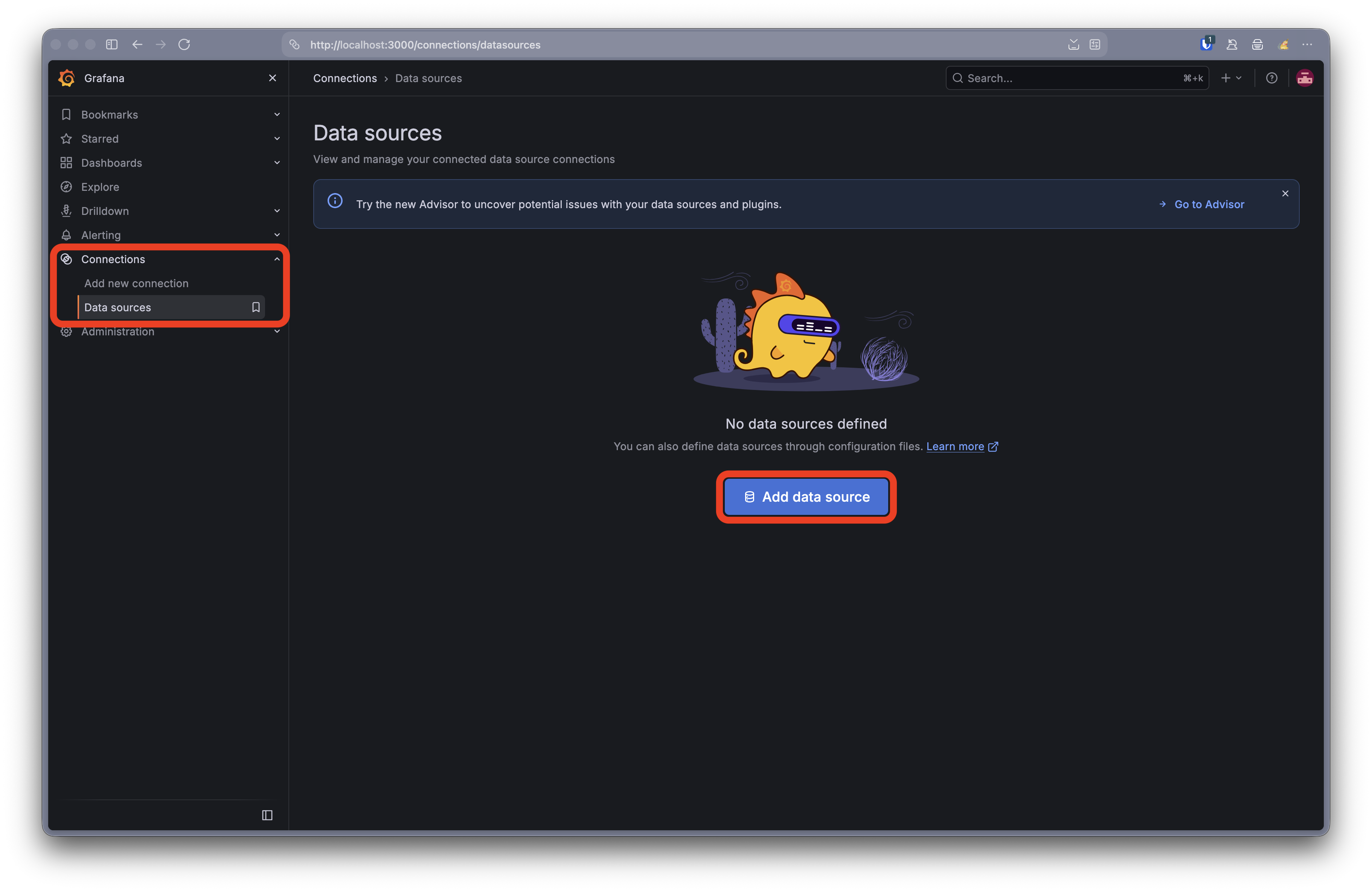
  1. Add InfluxDB as a data source in Grafana using the credentials and bucket name specified in your .env file.

    • Query language: Flux
    • URL: http://influxdb:8086
    • Organization: buildit
    • Token: buildit-monitoring-token
    • Default Bucket: network
    Add InfluxDB Data Source in Grafana

    Click Save & Test to verify the connection to InfluxDB.

    Save & Test InfluxDB Data Source in Grafana
  2. Create a dashboard to visualize the SNMP metrics collected by Telegraf.
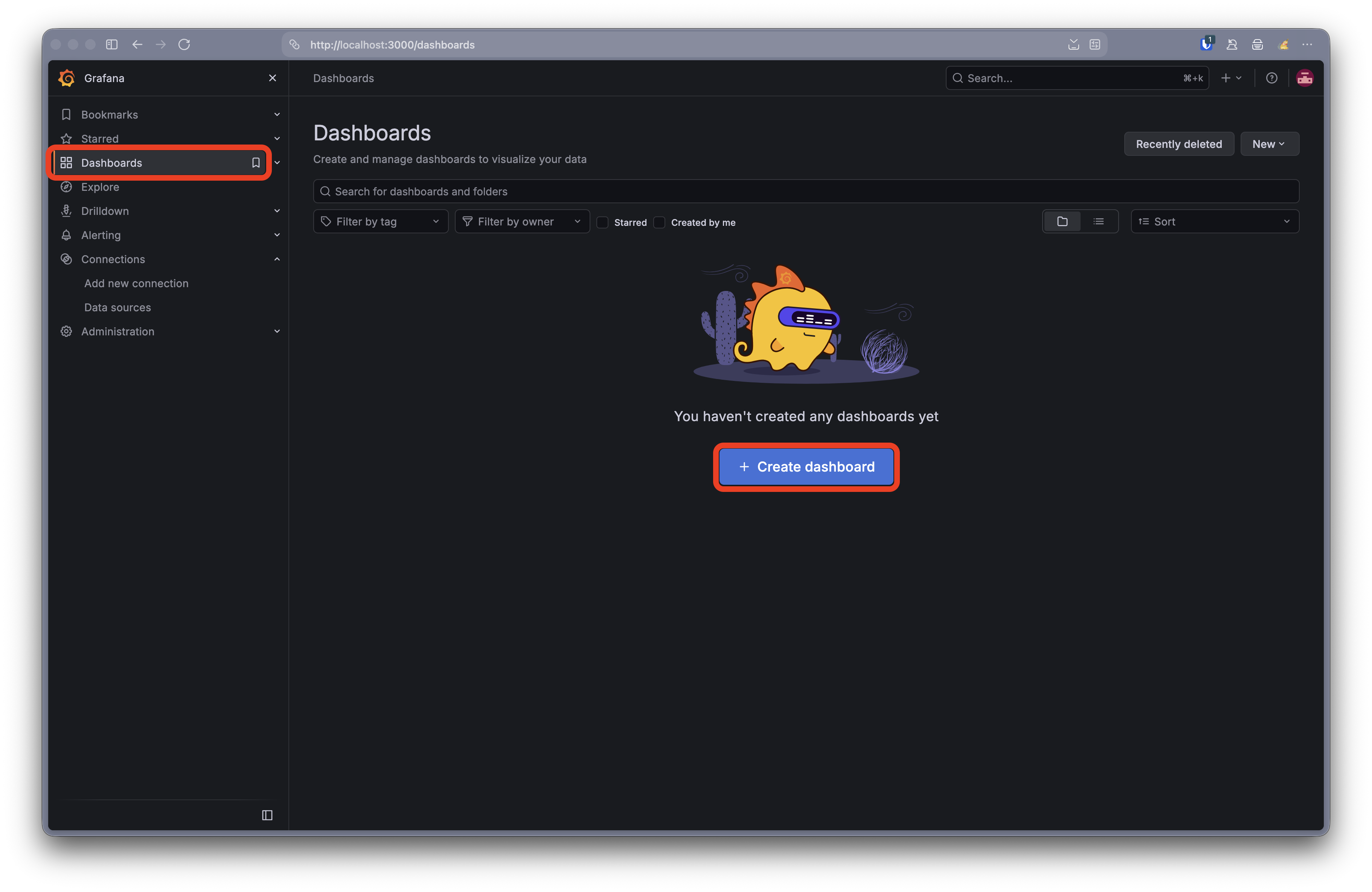
    Create a Dashboard in Grafana

Grafana Web Interface3/3

  1. Add panels to the dashboard to display different types of data, such as network traffic, CPU usage, and memory utilization.
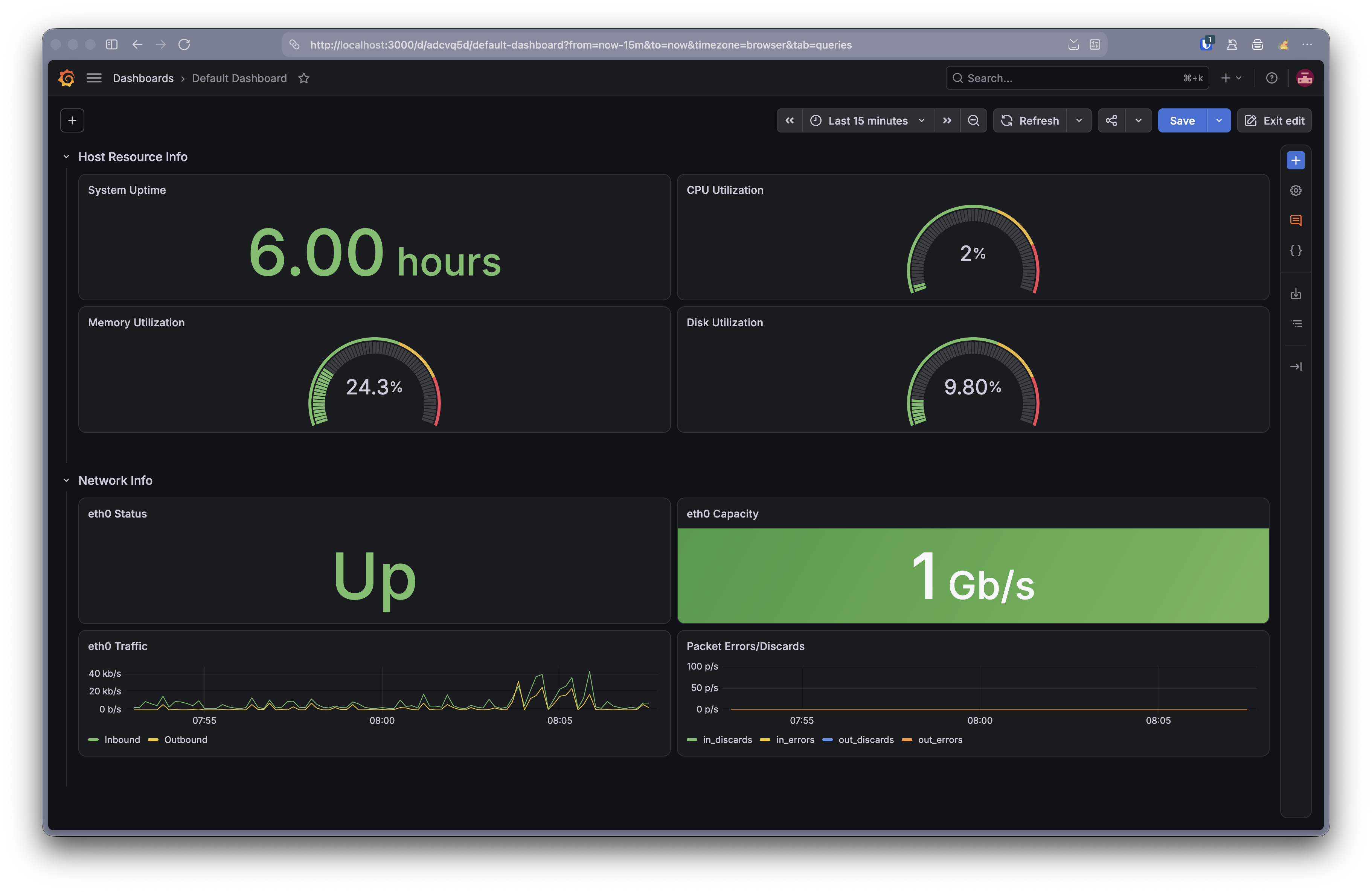
    Add Panels to the Dashboard in Grafana

    The full documentation for creating dashboards and panels in Grafana can be found in the Grafana documentation.

    The queries below are some examples that retrieve the SNMP metrics collected by Telegraf from InfluxDB for a panel. Some metrics can be displayed directly, while others need to be calculated or converted before they are useful for visualization.

    System Uptime
    from(bucket: "network")
    |> range(start: v.timeRangeStart, stop: v.timeRangeStop)
    |> filter(fn: (r) => r._measurement == "snmp")
    |> filter(fn: (r) => r._field == "uptime")
    |> last()
    |> map(fn: (r) => ({ r with _value: float(v: r._value) / 100.0 }))

    hrProcessorLoad (and consequently the cpu and load_percent data we are importing to InfluxDB) reports utilization separately for each logical processor. This query retrieves the latest reading for each processor and calculates their mean to produce an overall CPU utilization percentage.

    Current CPU Utilization
    from(bucket: "network")
    |> range(start: v.timeRangeStart, stop: v.timeRangeStop)
    |> filter(fn: (r) => r._measurement == "cpu")
    |> filter(fn: (r) => r._field == "load_percent")
    |> last()
    |> group()
    |> mean()

    Linux uses otherwise-unused memory for caching, so the amount of memory marked as “used” does not necessarily represent memory pressure. Instead, we’ll calculate utilization using available memory:

    Memory Utilization = (1 − Available Memory / Total Physical Memory) × 100

    Memory Utilization
    total = from(bucket: "network")
    |> range(start: v.timeRangeStart, stop: v.timeRangeStop)
    |> filter(fn: (r) => r._measurement == "storage")
    |> filter(fn: (r) => r.storage == "Physical memory")
    |> filter(fn: (r) => r._field == "size")
    |> last()
    |> findRecord(fn: (key) => true, idx: 0)
    available = from(bucket: "network")
    |> range(start: v.timeRangeStart, stop: v.timeRangeStop)
    |> filter(fn: (r) => r._measurement == "storage")
    |> filter(fn: (r) => r.storage == "Available memory")
    |> filter(fn: (r) => r._field == "size")
    |> last()
    |> findRecord(fn: (key) => true, idx: 0)
    from(bucket: "network")
    |> range(start: v.timeRangeStart, stop: v.timeRangeStop)
    |> filter(fn: (r) => r._measurement == "storage")
    |> filter(fn: (r) => r.storage == "Physical memory")
    |> filter(fn: (r) => r._field == "size")
    |> last()
    |> map(fn: (r) => ({
    r with
    _value: (1.0 - (float(v: available._value) / float(v: total._value))) * 100.0
    }))

    Disk Utilization = Used Space / Total Space × 100

    Disk Utilization
    size = from(bucket: "network")
    |> range(start: v.timeRangeStart, stop: v.timeRangeStop)
    |> filter(fn: (r) => r._measurement == "storage")
    |> filter(fn: (r) => r.storage == "/")
    |> filter(fn: (r) => r._field == "size")
    |> last()
    |> findRecord(fn: (key) => true, idx: 0)
    from(bucket: "network")
    |> range(start: v.timeRangeStart, stop: v.timeRangeStop)
    |> filter(fn: (r) => r._measurement == "storage")
    |> filter(fn: (r) => r.storage == "/")
    |> filter(fn: (r) => r._field == "used")
    |> last()
    |> map(fn: (r) => ({
    r with
    _value: float(v: r._value) / float(v: size._value) * 100.0
    }))
    Status of Network Interface eth0
    from(bucket: "network")
    |> range(start: v.timeRangeStart, stop: v.timeRangeStop)
    |> filter(fn: (r) => r._measurement == "interface")
    |> filter(fn: (r) => r.interface == "eth0")
    |> filter(fn: (r) => r._field == "status")
    |> last()
    eth0 Speed Capacity
    from(bucket: "network")
    |> range(start: v.timeRangeStart, stop: v.timeRangeStop)
    |> filter(fn: (r) => r._measurement == "interface")
    |> filter(fn: (r) => r.interface == "eth0")
    |> filter(fn: (r) => r._field == "speed_mbps")
    |> last()

    Earlier, we calculated a traffic rate by finding the difference between two SNMP counter readings over time. The derivative() function performs that calculation automatically. Because ifHCInOctets and ifHCOutOctets count bytes, multiplying the resulting bytes-per-second value by 8 converts it to bits per second.

    eth0 Inbound Traffic
    from(bucket: "network")
    |> range(start: v.timeRangeStart, stop: v.timeRangeStop)
    |> filter(fn: (r) => r._measurement == "interface")
    |> filter(fn: (r) => r.interface == "eth0")
    |> filter(fn: (r) => r._field == "in_octets")
    |> derivative(unit: 1s, nonNegative: true)
    |> map(fn: (r) => ({
    r with
    _value: float(v: r._value) * 8.0
    }))
    |> set(key: "_field", value: "Inbound")
    |> keep(columns: ["_time", "_value", "_field"])
    eth0 Errors and Discards
    from(bucket: "network")
    |> range(start: v.timeRangeStart, stop: v.timeRangeStop)
    |> filter(fn: (r) => r._measurement == "interface")
    |> filter(fn: (r) => r.interface == "eth0")
    |> filter(fn: (r) =>
    r._field == "in_errors" or
    r._field == "out_errors" or
    r._field == "in_discards" or
    r._field == "out_discards"
    )
    |> derivative(unit: 1s, nonNegative: true)
    |> keep(columns: ["_time", "_value", "_field"])

Test Your Dashboard

Generate some traffic

Use CloudFlare’s speed test to generate network traffic:

Terminal window
curl -o /dev/null https://speed.cloudflare.com/__down?bytes=100000000

Generate some memory usage

Make Python eat our memory:

Terminal window
python3 -c "import time; x = b'x' * 3_000_000_000; time.sleep(60)"

Up next

Wireguard
Switch to normal mode

Contents