Installing Raspberry Pi OS
Install and configure Raspberry Pi OS on a Raspberry Pi
This guide walks through installing Raspberry Pi OS on an SD card, booting a Raspberry Pi for the first time, and performing some basic configuration.
For the initial installation, we will use the official Raspberry Pi Imager.
What You’ll Need1/2
Before getting started, you will need:
- A Raspberry Pi
- An SD card
- A device (e.g. laptop, desktop, another pi) with:
- Raspberry Pi Imager installed
- An SD card slot, adapter, or reader
What You’ll Need2/2
- A monitor and appropriate display cable
- A keyboard and mouse
- A power cable (or another appropriate power source, such as PoE)
- (If using a wired connection) Ethernet cable
Install Raspberry Pi OS1/7
Insert the SD card into the computer running Raspberry Pi Imager and open Raspberry Pi Imager.
-
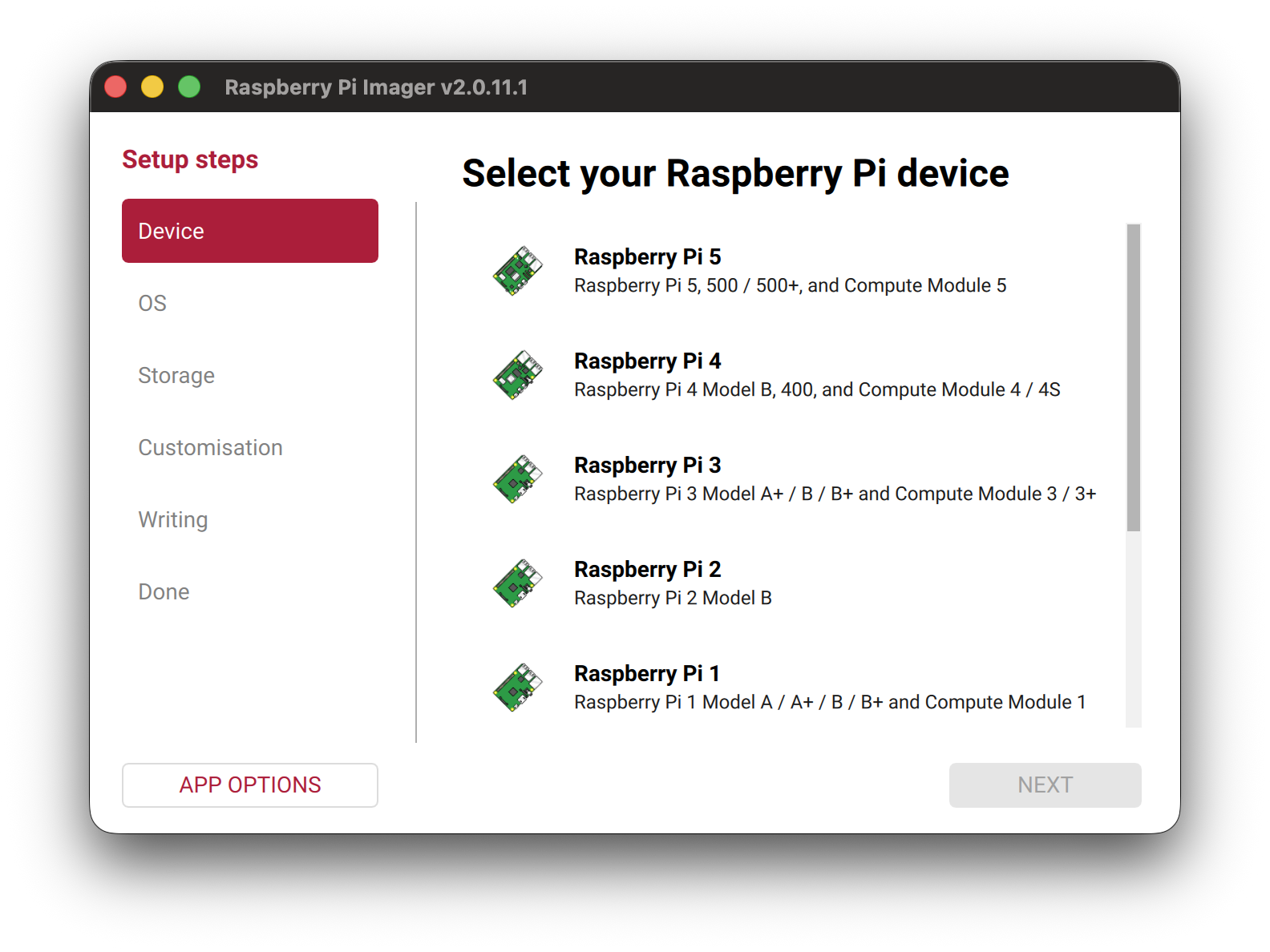
Choose your Raspberry Pi
Select the model of Raspberry Pi you are installing the operating system on.
For example: Raspberry Pi 4
Install Raspberry Pi OS2/7
-
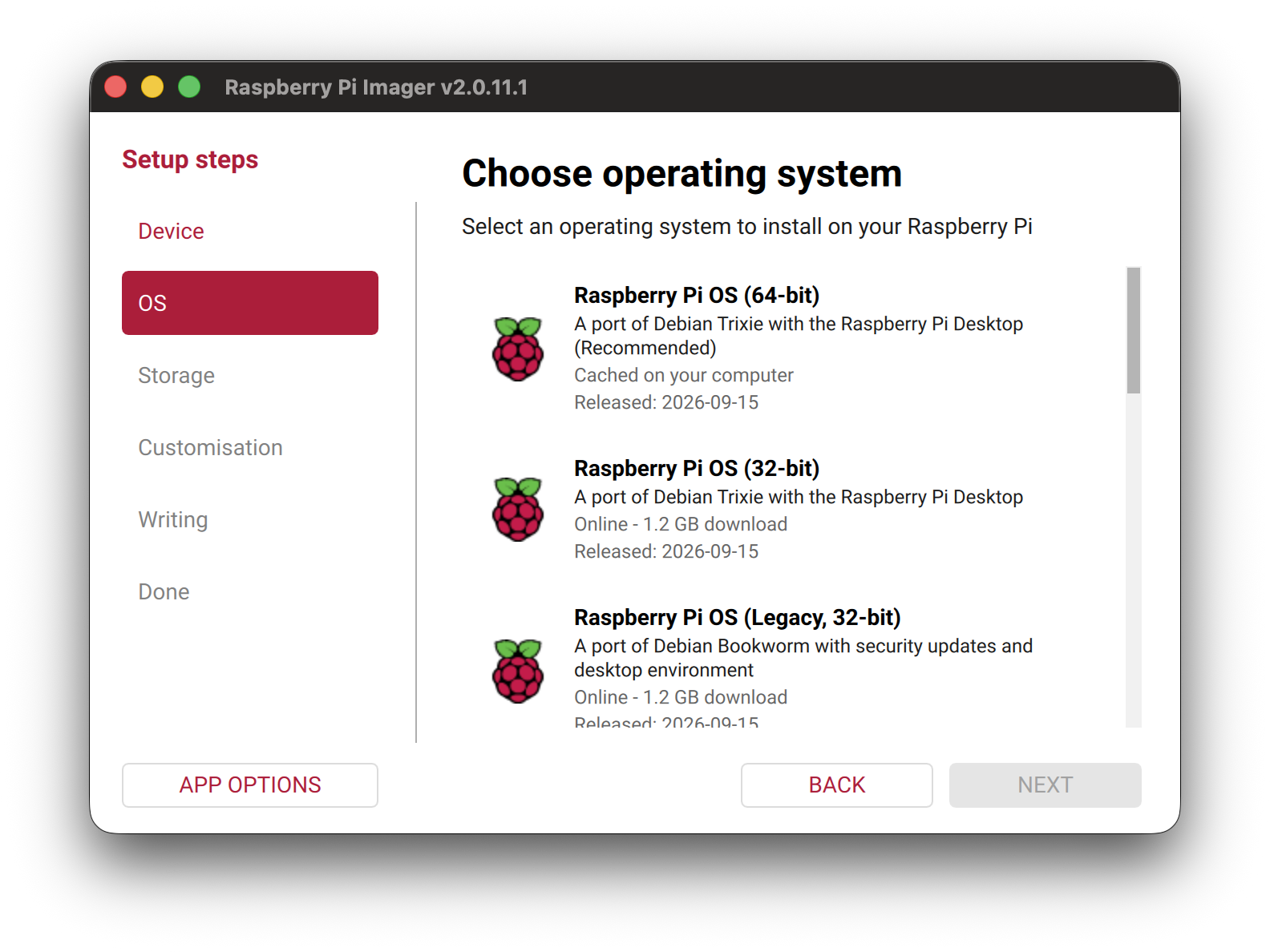
Choose the operating system
Choose the operating system you want to install on your Raspberry Pi.
For example: Raspberry Pi OS (64-bit)
Install Raspberry Pi OS3/7
-
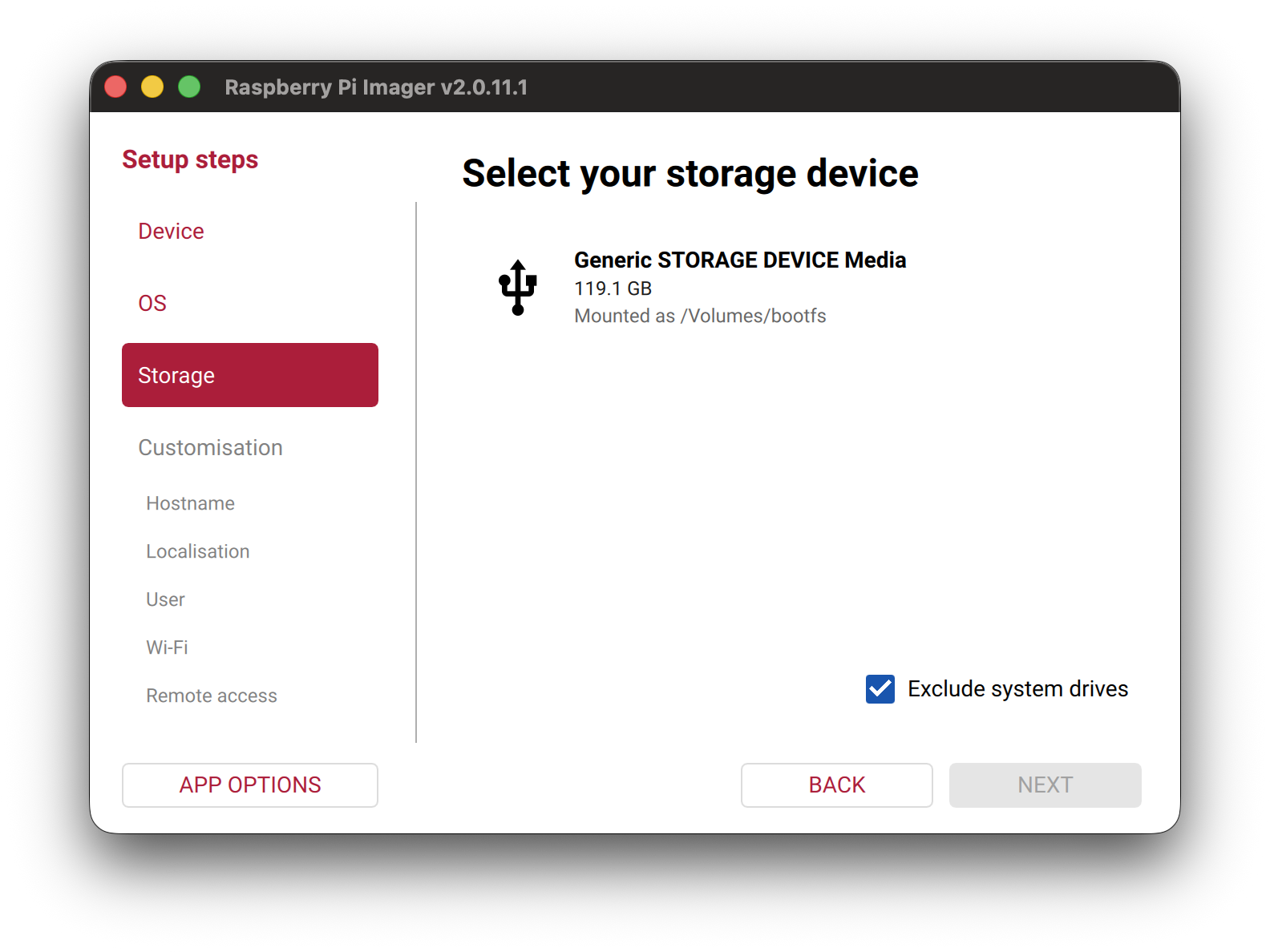
Choose your storage
Select the SD card you inserted.
Install Raspberry Pi OS4/7
-
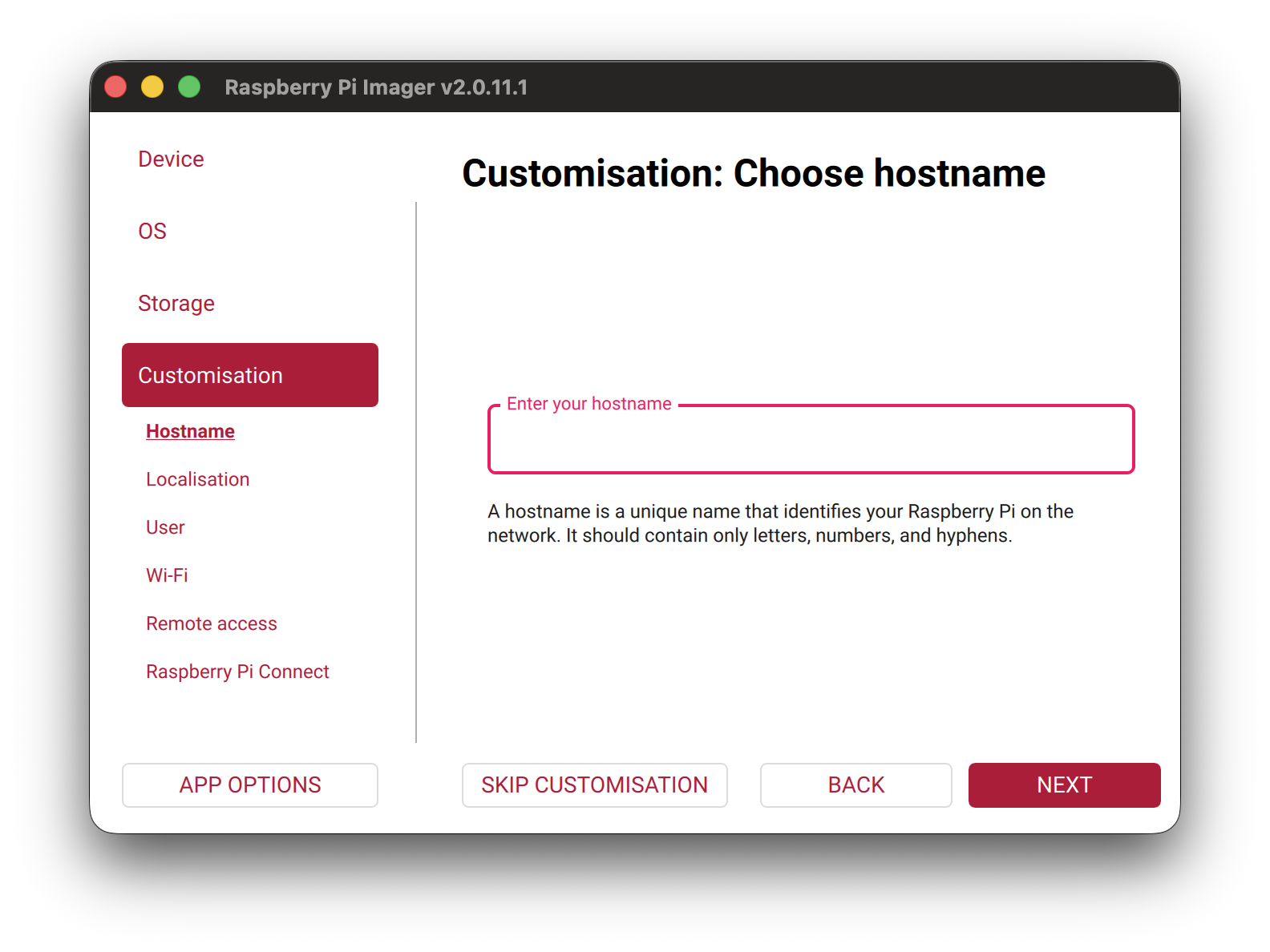
Customization: Set Hostname
Enter the hostname for your Raspberry Pi.
-
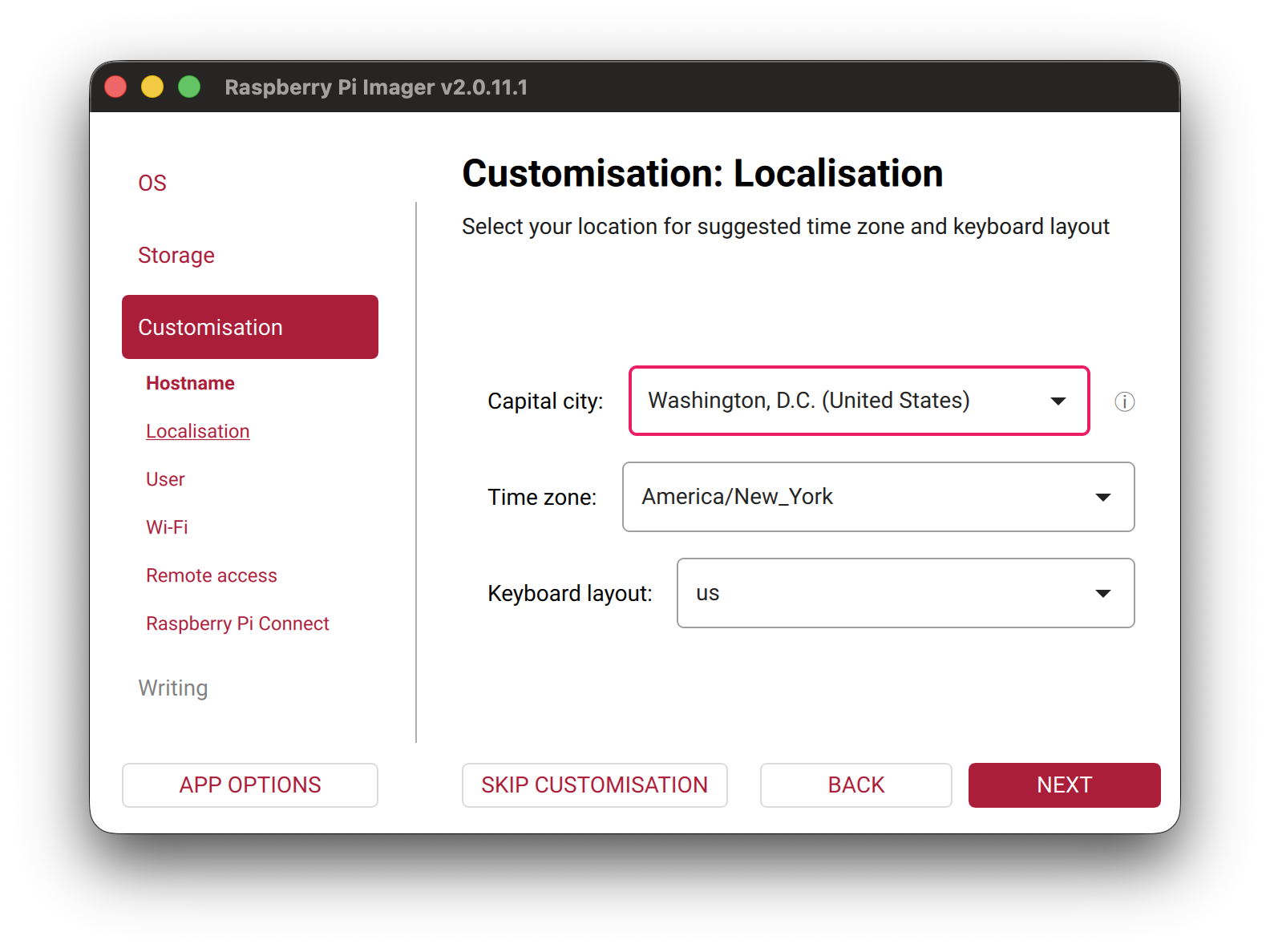
Customization: Set Localization
Configure the localization settings for your Raspberry Pi.
Install Raspberry Pi OS5/7
-
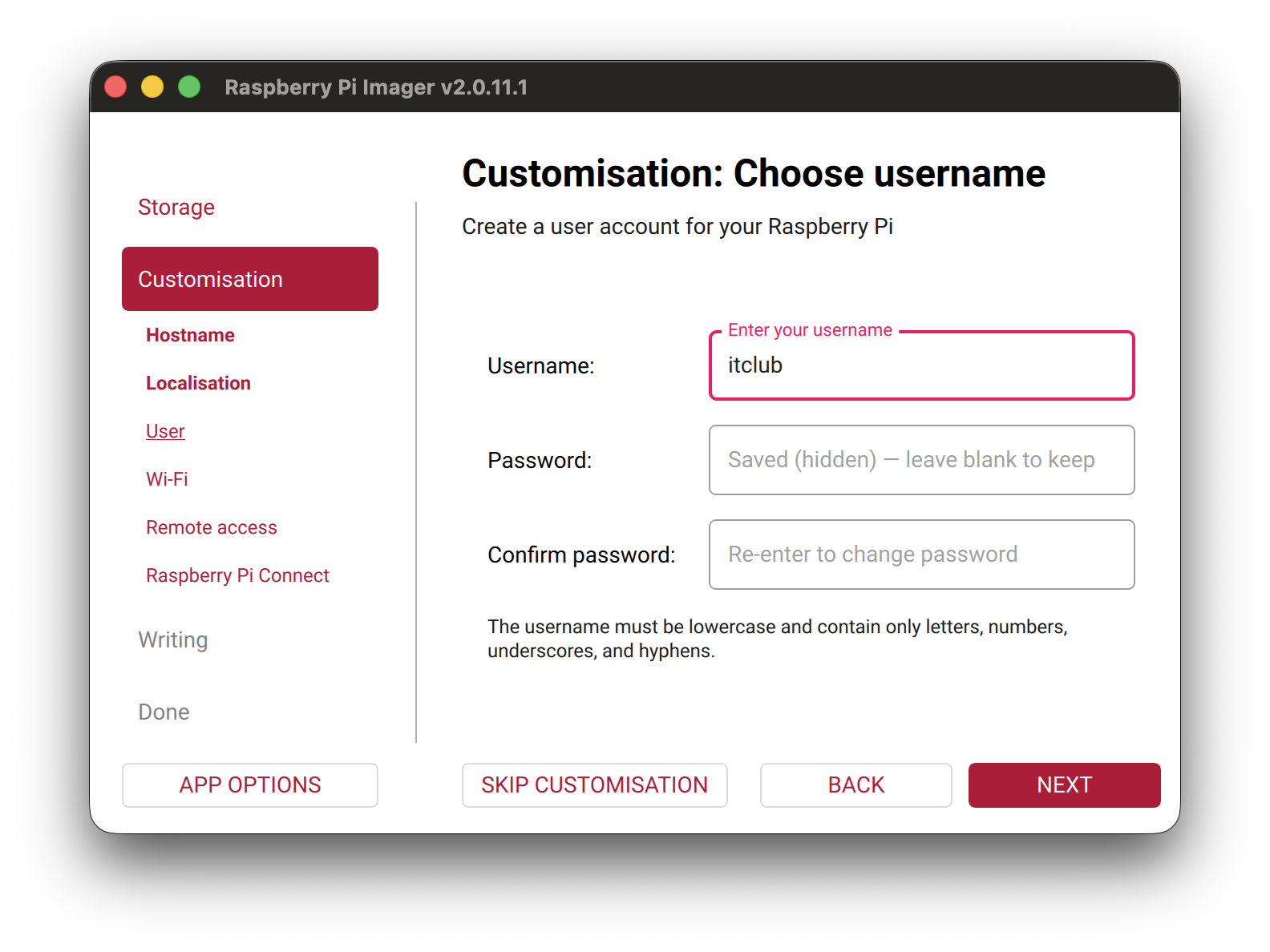
Customization: Set Username & Password
Enter the username and password for your Raspberry Pi.
-
Customization: Wifi, SSH, and Raspberry Pi Connect
Configure the Wifi, SSH, and Raspberry Pi Connect settings for your Raspberry Pi as needed. For the purposes of this guide, you can leave them at their default settings.
Install Raspberry Pi OS6/7
-
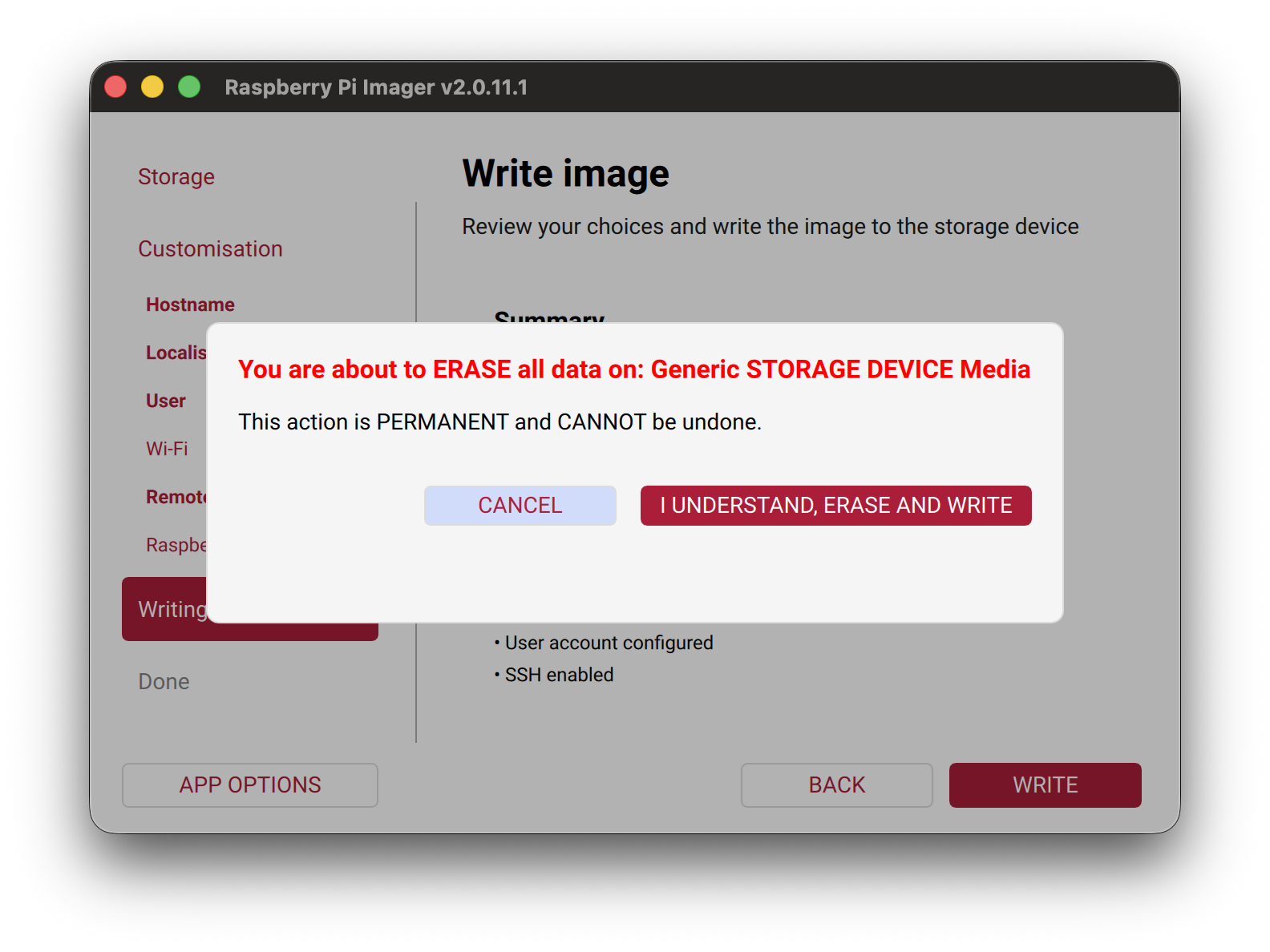
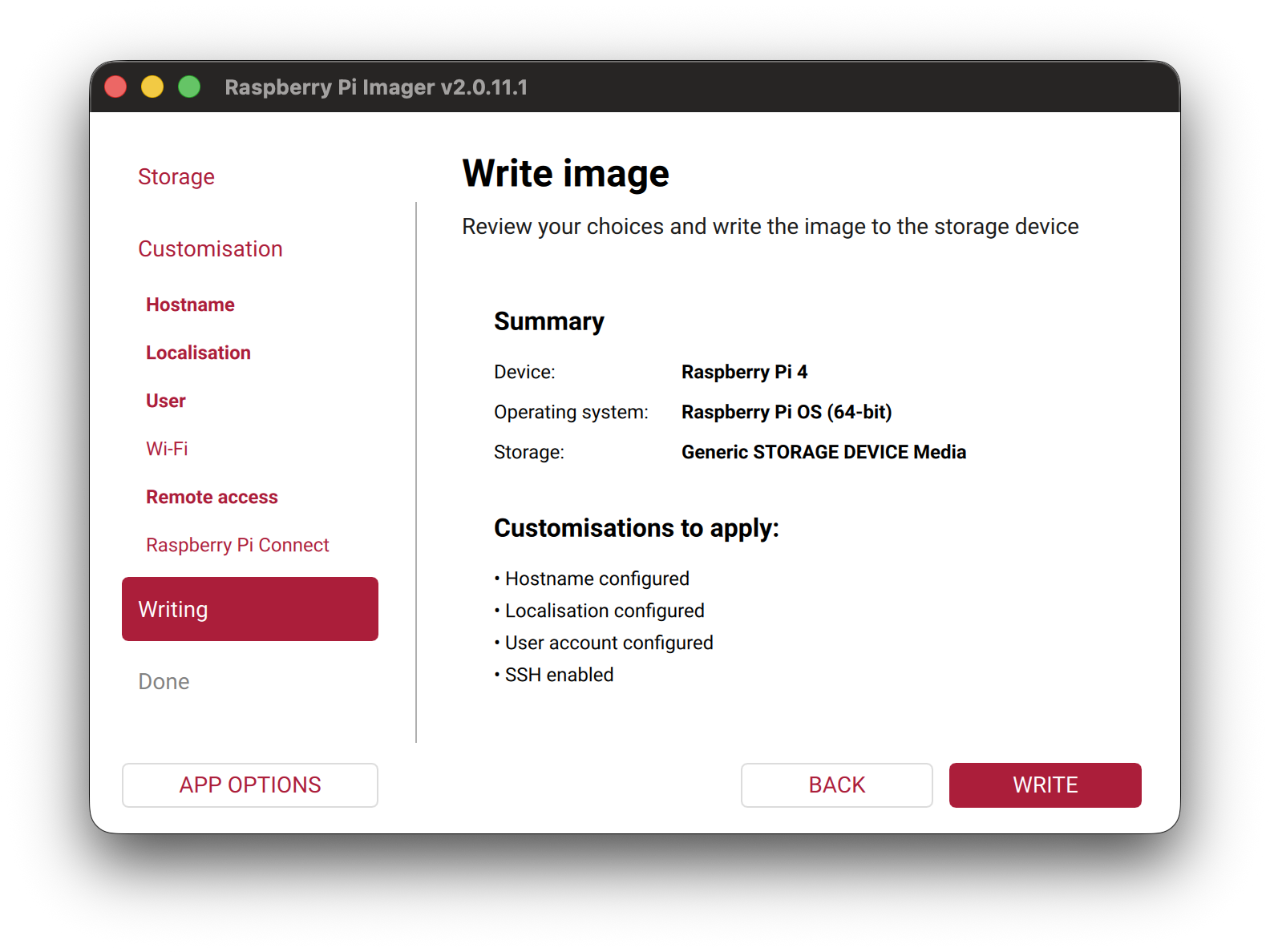
Write the operating system to the SD card
Once you have configured all the necessary settings, click Write to write the operating system to the SD card. Confirm that you want to proceed when prompted. You may also be prompted to input your password. Then, wait for the writing process to complete.
Install Raspberry Pi OS7/7
-
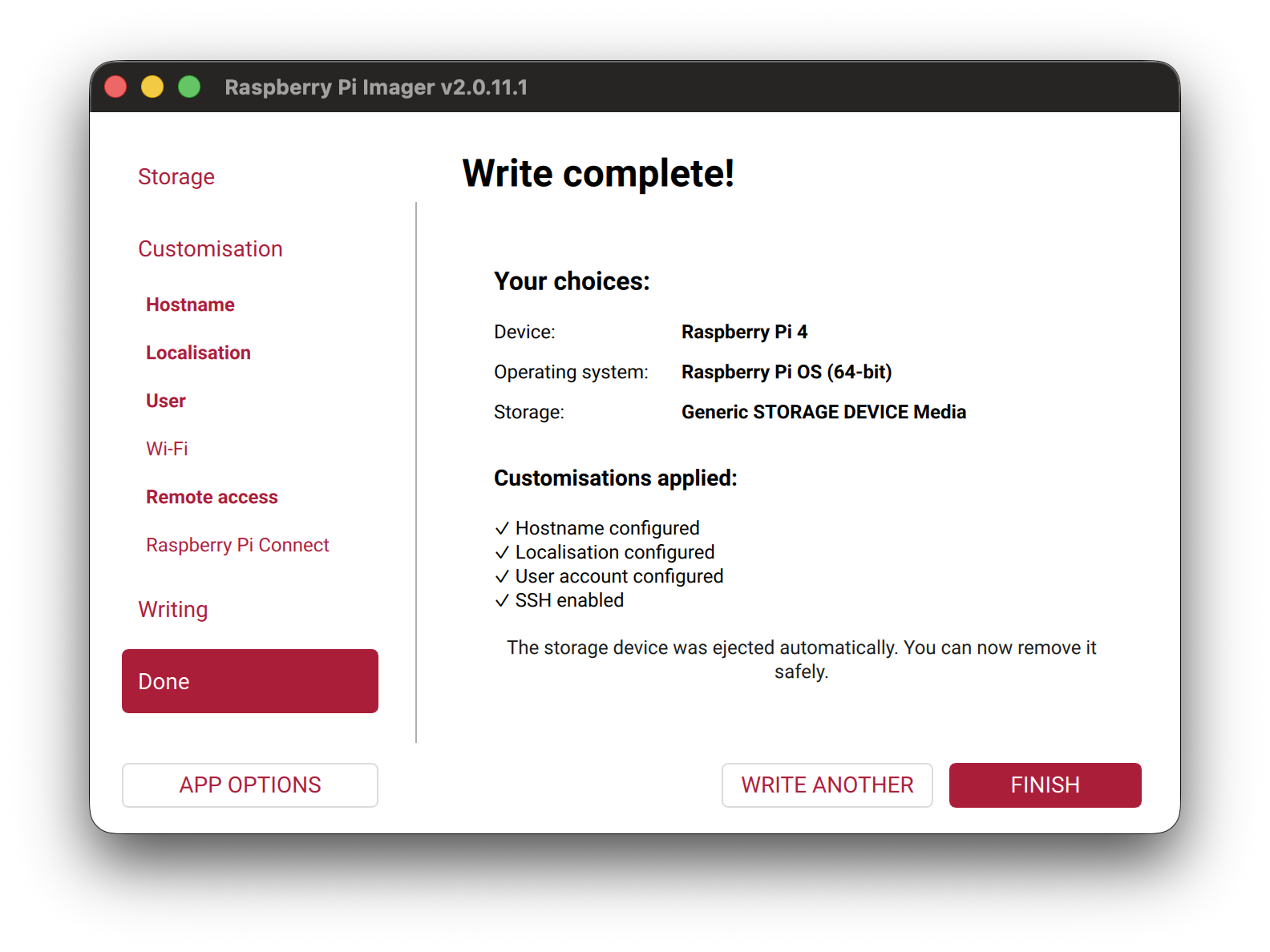
Write complete!
Select Finish when the write is complete. You have successfully written the operating system to the SD card. You can now remove the SD card from your computer and insert it into your Raspberry Pi to boot it up.
Boot the Raspberry Pi1/2
Once Raspberry Pi Imager has finished:
- Remove the SD card from your computer.
- Insert it into the Raspberry Pi.
- Connect your monitor, keyboard, mouse, network connection, and any other necessary peripherals.
- Connect power to the Raspberry Pi.
Boot the Raspberry Pi2/2
Wait for Raspberry Pi OS to finish booting.
Once it has booted, open the Terminal.
You should see a command prompt similar to:
username@hostnameUpdate Raspberry Pi OS
After the Raspberry Pi has booted, update its package information and installed packages:
sudo apt updatesudo apt upgrade -yTroubleshooting the System Time1/2
If the system time is incorrect or is not synchronizing, you can restart network time synchronization:
sudo timedatectl set-ntp falsetimedatectl status
sudo timedatectl set-ntp truetimedatectl statusTroubleshooting the System Time2/2
If the time is still incorrect, temporarily set it manually:
sudo date -s 'YYYY-MM-DD HH:MM:SS'Then open the Raspberry Pi configuration utility:
sudo raspi-configCheck that the correct time zone is configured.
Once the system time is correct, retry the commands that were previously failing.
Optional: Enable SSH Later
If you did not enable SSH through Raspberry Pi Imager, you can enable it later with:
sudo raspi-configNavigate to:
Interface Options → SSH → Yes
Press Enter to select each option.
You can also enable SSH through Preferences → Raspberry Pi Configuration in the desktop interface.
Optional: Back Up an SD Card1/2
You can create a compressed image of an existing Raspberry Pi SD card from another Linux system.
First, connect the SD card and determine its device name.
Optional: Back Up an SD Card2/2
Create the backup:
sudo dd if=<device> status=progress bs=32M | gzip -c > <path-to-backup>/raspberrypi.img.gzTo restore the backup:
gunzip -c <path-to-backup>/raspberrypi.img.gz | sudo dd of=<device> status=progress bs=32MThe backup is compressed with gzip so that the resulting file does not necessarily occupy the full capacity of the SD card.
Optional: Clone an SD Card1/2
To clone one SD card directly to another, connect both cards to the computer and determine their device names.
Optional: Clone an SD Card2/2
Clone the card with:
sudo dd bs=32M if=<input-device> of=<output-device>Once the command completes, the output SD card will contain a copy of the original card.
Additional Resources
Up next
Self Hosted Git